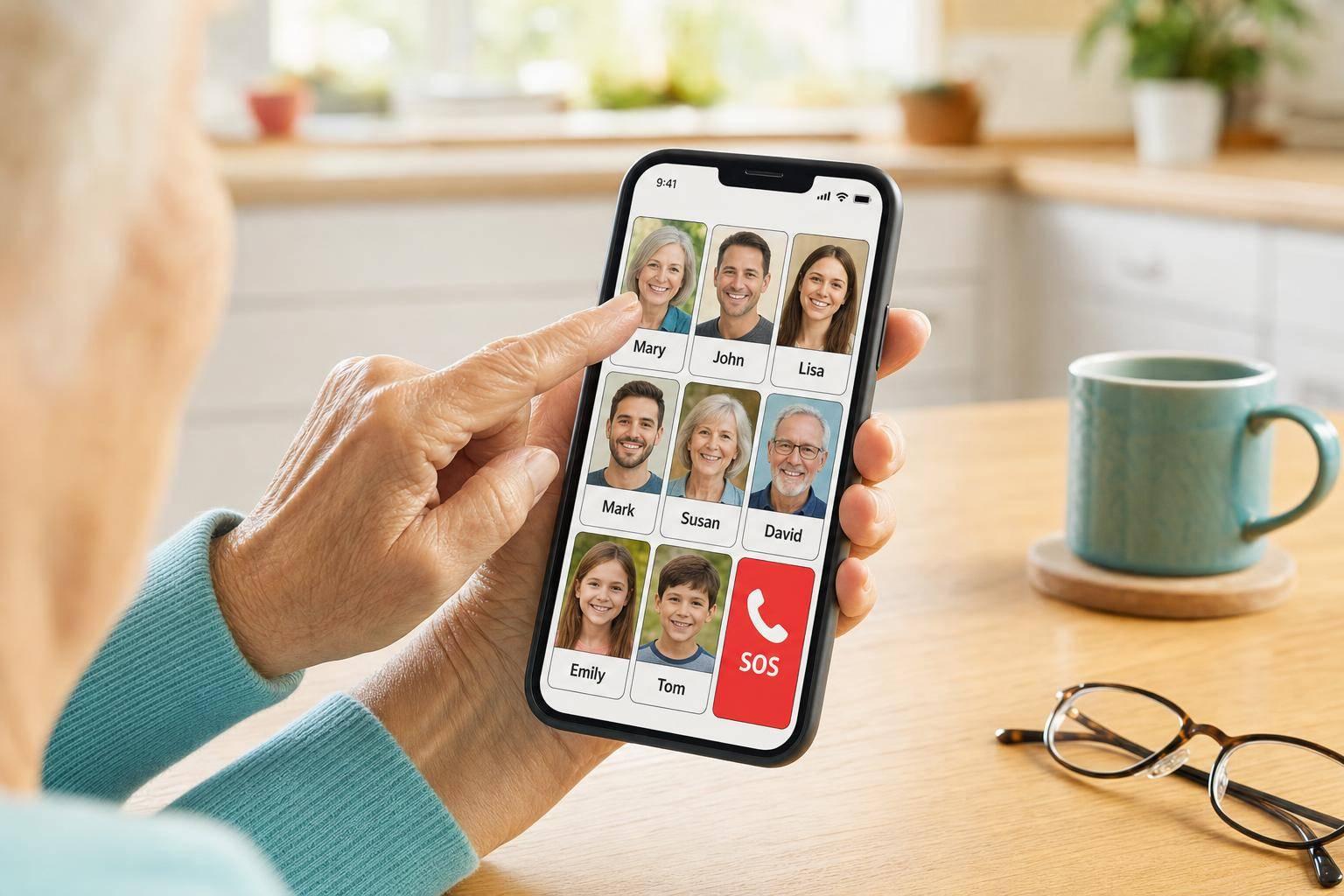
If your parent needs help, the phone should take one or two taps, not six. I’d keep the main screen to 5–10 people and services, use clear names like “Daughter – Sarah”, add face photos, and place 2–3 large call buttons on the home screen. That cuts stress and helps your parent get the right person fast.
I’d also set up 999, Medical ID, and a missed daily check-in alert. For older adults with sight loss or memory trouble, fewer choices often means fewer mistakes. In one simple setup, I want calls, texts, WhatsApp, and help tools all in the same place.
I see this as being about two things: more independence for your parent and less worry for you. If the phone feels cluttered or hard to use, Ezefone can turn an Android phone into a simpler senior phone in under 5 minutes, with one-tap contacts, help buttons, and family safety tools.
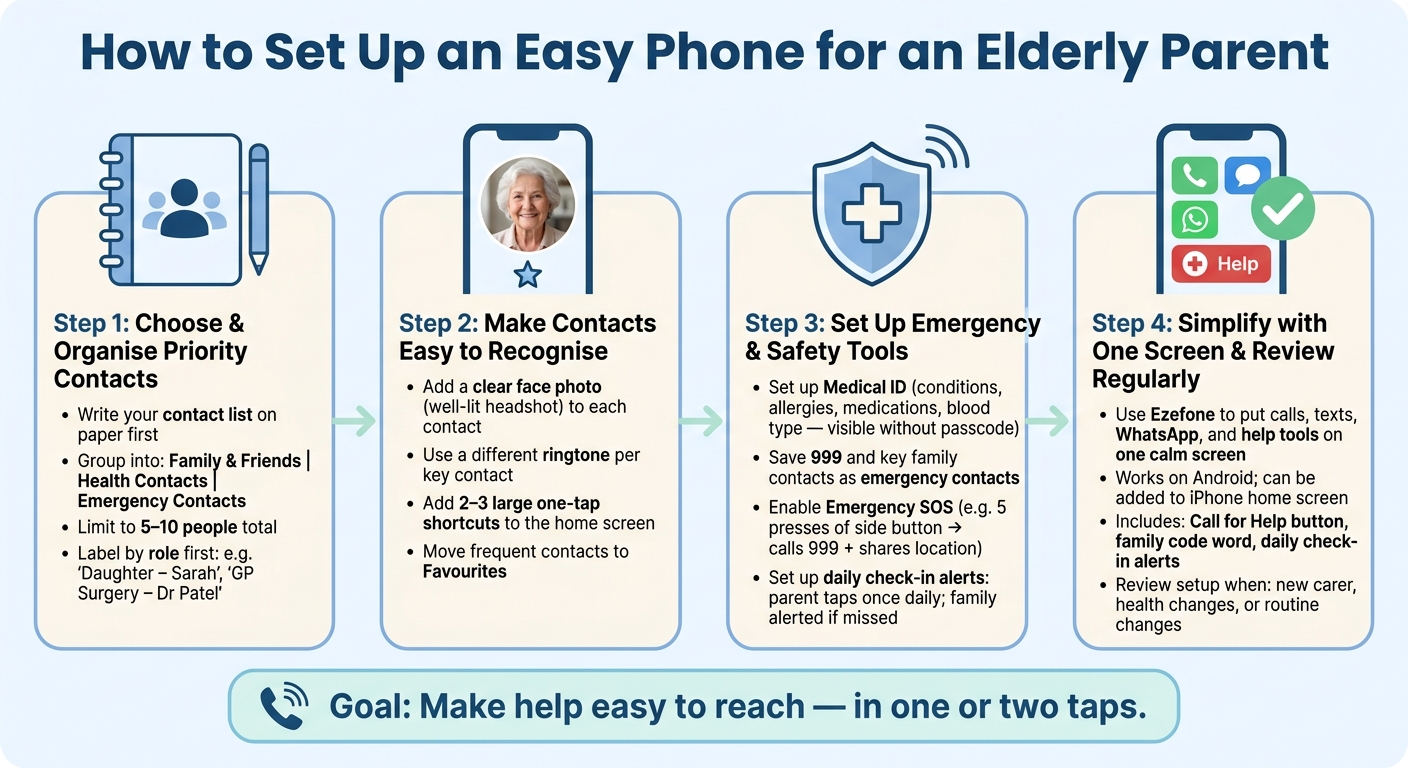
To keep it simple, I’d focus on four jobs: choose the right contacts, make them easy to spot, add safety tools, and review the setup now and then.
At the end of the day, the aim is plain: make help easy to reach.
If you want a calmer, safer phone setup, Ezefone turns any Android phone into an easy senior phone in less than 5 minutes.
Ezefone is a one-time purchase. Start free, or choose Standard at £7.99 or Family at £34.99. No monthly subscriptions, no hidden fees, and easy family setup.
How to Set Up an Easy Phone for an Elderly Parent (4-Step Guide)
Adding the people who matter
Step 1: choose and organise priority contacts
Before you change any phone settings, write the contact list on paper first. That gives you a clear plan and helps you avoid a cluttered phonebook from the start.
Once you have a shortlist, group each person by purpose before you save anything. Keep them under family and close friends, health contacts, and emergency contacts. That way, the list stays clear instead of turning into a jumble.
Each contact should make the phone simpler to use. The goal is fewer taps, less second-guessing, and less stress in the moment. Too many options can lead to confusion when help is needed most.
Use simple labels such as "Daughter – Sarah" or "Neighbour – Pat"
Save each contact name in a way your parent can spot at once. If a contact is saved as only "Sarah", it may cause a pause - which Sarah? - and that small delay can matter.
Use the same naming style for every entry: "Son – James", "GP Surgery – Dr Patel", "Neighbour – Pat". For medical or service contacts, it often helps to label them by role first, not just by a name that may be harder to place.
Skip nicknames or short forms that only make sense in casual chat. In a tense moment, "Friend – Beverly" is far more useful than a vague pet name.
Must-have contacts versus nice-to-have contacts
Put the most urgent contacts on the home screen. These are the people or services your parent may need to reach in a hurry. Other contacts can still be easy to find, but they do not all need front-row space.
Contact
Who They Are
When Used
Home Screen?
Primary carer or child
Main family helper
Daily check-ins or immediate help
Yes – shortcut
Spouse or partner
Primary daily contact
Everyday calls
Yes – shortcut
GP surgery
Family doctor
Health concerns or appointments
Yes – shortcut
Trusted neighbour
Local help in a hurry
Falls, urgent local support
Yes – shortcut
Pharmacy
Prescription refills
Medication queries
No – in Favourites
Specialist doctors
Eye clinic, physio, etc.
Specific health reviews
No – in Favourites
It also helps to keep a large-print backup list near the charger. If the phone is flat, misplaced, or simply feeling confusing that day, the numbers are still easy to find.
sbb-itb-e740053
Step 2: make each contact easy to recognise and reach
Once you’ve picked the main contacts, the next job is making them simple to spot and simple to call. Start by removing duplicate entries and old numbers that no longer work. A short, tidy contact list is much less stressful to use.
Add clear names, face photos, and distinctive ringtones
For each priority contact, use a clear name, a recent photo, and a ringtone that sounds different from the others. Pick a well-lit headshot rather than a group picture or a photo taken from far away. If your parent can see the caller’s face straight away, they may not need to read the name at all.
A different ringtone for each main person also helps. Your parent can learn, over time, who’s calling just from the sound, which makes the phone feel less confusing.
Once the names, photos, and tones are set, move the people they call most into favourites.
Set up favourites, speed dial, and home screen shortcuts
Add the most important people to favourites so they stay near the top of the contact list. Then set up direct-dial shortcuts for the contacts your parent uses most. A good rule is simple: use favourites for secondary contacts, and use one-tap shortcuts for the two or three people they may need fastest.
Keep the home screen uncluttered. Two or three large shortcuts are usually enough. Too many icons can make the phone harder to use, not easier.
If you’re using Ezefone, this step gets much easier. You can turn an Android phone into a simpler calling screen, with big buttons and easier access to the people who matter most.
After that, the next step is adding emergency tools for faster help.
Step 3: set up emergency and safety tools
Once your parent’s main contacts are easy to reach, it helps to add a second layer for urgent moments. Everyday calls are one thing. A fall, a scam call, or a sudden health issue is another. This is where safety tools matter, and it’s also where Ezefone can make things feel much simpler for the whole family.
Add emergency contacts, Medical ID, and SOS actions
Set up a Medical ID so first responders can see key health details from the lock screen. Add existing conditions, allergies, current medications, and blood type. That information can be seen without a passcode, which can save time when every minute counts.
Next, add emergency contacts in the Health app or phone settings. Save 999 and the main family or carer contacts. Clear labels help more than people think, especially in a stressful moment. For example, "Neighbour (Has Key) – Pat" is much easier to act on than just a first name.
Many newer smartphones also include Emergency SOS. This may be set off by something like five presses of the side button. It can call 999 and send the phone’s location to chosen emergency contacts. Turn it on, then test the steps once so your parent knows what to do and you can avoid false alarms.
Use check-ins and trusted help contacts for extra reassurance
Daily check-ins are for routine peace of mind. SOS is for urgent help. They do different jobs, and both can help a family worry less.
With a daily check-in, your parent taps once a day to show they’re okay. If they miss it, a trusted family member gets an alert. It’s simple, but for many families, that small signal can take a lot of stress out of the day.
Tool
Action
Alerts
In-phone SOS
Triggered by rapid button presses; shares location and calls for help
Emergency services and chosen emergency contacts
Medical ID
Health information displayed on the lock screen without a passcode
First responders
Daily check-in
Parent confirms they are okay at a set time; alert sent if missed
Family members or trusted caregivers
Ezefone keeps daily check-ins, a Call for Help button, and a family code word on the same simple screen.
After that, keep the contacts and safety tools on one simple screen.
Step 4: simplify everything with Ezefone and keep it working
When a phone feels cluttered or confusing, even simple tasks can turn into stress. Ezefone puts the people and safety tools that matter most on one clear screen, with favourite contacts for one-tap calling, texting, and WhatsApp access.
One screen for favourite contacts, messages, and WhatsApp access
You can use Ezefone straight on Android, or add it to an iPhone home screen. That gives your parent one easy place to call, send a message, or get help without digging through menus.
For many families, that one change makes day-to-day phone use feel calmer. The screen stays focused on what your parent uses most, so there’s less chance of tapping the wrong thing.
Add help features and review the setup regularly
Ezefone also includes a Call for Help button, a family code word, daily check-in alerts, and guidance for dealing with nuisance calls.
It’s worth checking the setup from time to time. If there’s a new carer, a change in health details, or a different daily routine, update the contacts, shortcuts, and alerts so the right person still gets the call or message.
FAQs
How many contacts should I add?
Keep it to a small, curated group - usually 5 to 10 priority contacts on the home screen or favourites list.
Stick to the people they’re most likely to need: close family, a main carer, and emergency help if needed. A shorter list cuts down clutter and makes the right person much easier to spot, recognise and call.
What if my parent uses an iPhone?
If your parent uses an iPhone, you can make it much easier to use with the phone’s built-in accessibility and layout settings. That small bit of setup can save a lot of stress later, especially if they need to call someone in a hurry.
Start by adding the people they call most to Favourites in the Phone app. That gives them a simple, one-tap way to reach family, friends, or carers without digging through contacts.
You can also place contact icons on the Home Screen by using a dedicated page or the Shortcuts app. For many families, this works well because the phone feels less cluttered and the right person is right there on screen.
For added safety, set up emergency contacts in the Medical ID section of the Health app. That way, those contacts can still be reached even when the phone is locked.
How often should I review the setup?
Review the phone setup every few months so it stays easy to use and still fits your parent’s day-to-day life. A quick check every three to six months helps make sure priority contact numbers are still right and that any new family members or carers have been added.
This is also a good moment to see if your parent has made new friends or started calling different people more often. You can then remove unused icons and old shortcuts, which helps keep the screen clear, simple and less confusing.